How to Repost TikTok Videos to Instagram Reels Without Shadowban
Instagram's algorithm detects and restricts videos with TikTok watermarks. To repost TikTok videos to Instagram Reels without shadowban, you must remove the watermark first. TikSaveHub strips the watermark and delivers a clean 1080p MP4 file. This process takes under 30 seconds.
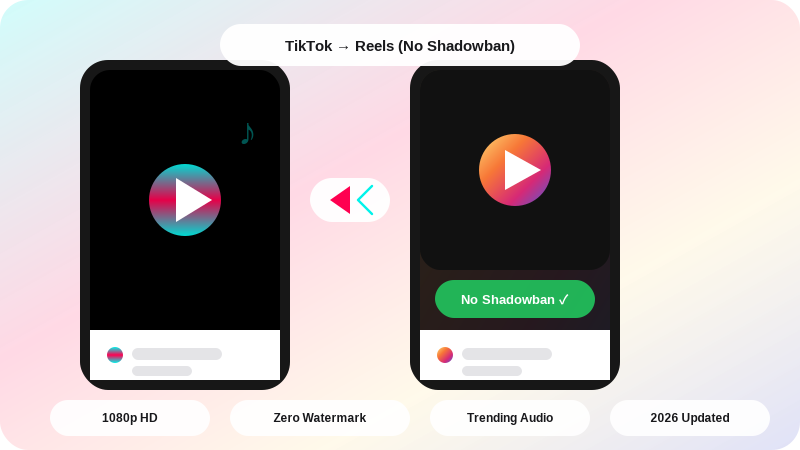
Why Does Instagram Shadowban Reposted TikTok Videos?
Instagram prioritizes original content. Their computer vision technology detects TikTok watermarks, logos, and ending screens. Once detected, the video is restricted from the Explore page and Reels feed.
Three factors trigger a shadowban:
- The TikTok watermarkInstagram's AI flags the bouncing TikTok logo and ending screen. The video is pushed out of the Explore page and Reels feed.
- Compressed qualityExporting directly from the TikTok app reduces resolution. Instagram penalizes blurry or pixelated videos.
- Duplicate metadataEvery video file has hidden background data. Uploading the exact raw file without changes signals recycled content to Instagram.
How to Repost TikTok Videos to Instagram Reels
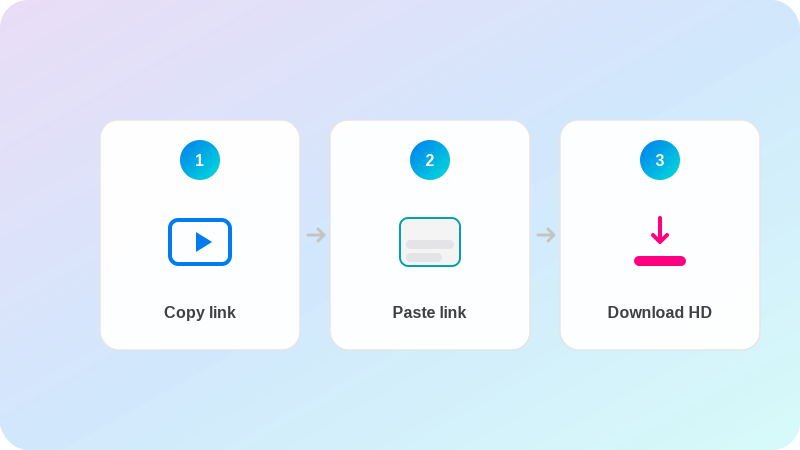
Copy the TikTok Video Link
Open TikTok, find the video, tap Share, then tap Copy Link.
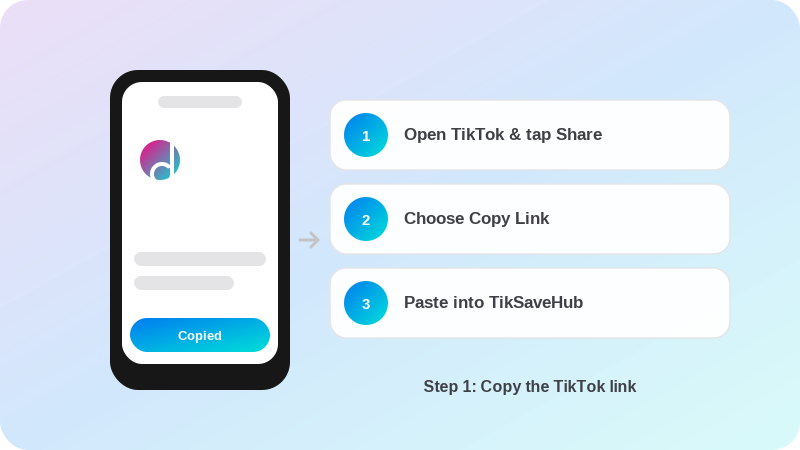
The copied URL always follows the pattern https://www.tiktok.com/@username/video/1234567890. It ends in a long number, and that number is the unique ID of the clip. Keep it somewhere safe, because you will need it again if you want to pull the same video in a different resolution later.
Remove the Watermark Using TikSaveHub
Visit TikSaveHub TikTok Downloader, paste the link, and tap Download. TikSaveHub delivers a clean 1080p MP4 without watermark. TikSaveHub strips the original metadata, giving you a fresh file that Instagram cannot trace back to TikTok.
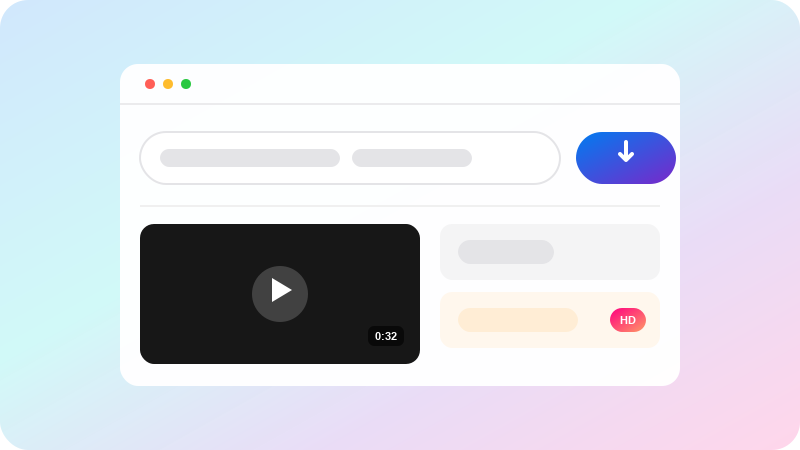
The download usually finishes in a few seconds. When the file lands, check the opening and closing frames
before you edit anything. If the TikTok logo is still visible in either corner, you grabbed the wrong
rendering and should re-run the download rather than trying to patch it later.
Make Native Instagram Edits
Trim 0.5 seconds from the beginning or end of the clip. Add a title using Instagram's built-in text editor. Place an invisible sticker (drag it off-screen) to register native editing activity.
Do these three edits in the Instagram app itself rather than in a separate editor. Edits made inside the app
are attached to the post as native activity, which is exactly the signal you want. The same trim performed in
a third-party app leaves a re-encoded file with no editing trail.
Add Trending Audio
Search for a trending audio track on Instagram. Add it to your Reel and set its volume to 1-2%. Keep your original audio at 100%. You get the algorithm boost without changing your video's sound.
Optimize Captions and Hashtags
Write a descriptive caption with keywords your audience searches for. Use 3 to 5 relevant hashtags instead of spamming 30 random ones. Instagram SEO works differently from TikTok SEO.
The Native Edit Checklist
Most creators do one edit and hope it is enough. The Reels that actually get distributed tend to have
three or four small changes. Run through this list before you hit Share.
- Trim a different second each time. Half a second off the head or tail is invisible to the viewer but
changes the file enough that duplicate detection does not match your earlier upload.
- Rewrite the on-screen text. If the clip has baked-in captions, cover the original text and type your
own. Reused captions are one of the strongest recycled-content signals.
- Replace the cover frame. The cover is the first thing shown in the Reels grid. Pick a frame that is
not the same one the original creator used, and avoid a blurry zoom.
- Add a native sticker and move it. Tap a sticker, place it, then drag it off the edge of the frame. It
stays in your project history without appearing in the published video.
- Use Instagram trimming, not a third-party editor. The built-in trim tool in Reels counts as a native
edit. Exporting from CapCut or InShot does not.
None of these steps require a paid tool, and none of them add more than a couple of minutes to your workflow.
Common Reposting Mistakes
Reusing the identical file twice. If you posted the same export last week, the second upload is a true
duplicate and Instagram will suppress it. Always re-export with a different trim.
Leaving the audio loud at 100 percent over trending sound. A trending track played at full volume
buries your original audio and usually sounds worse. Push the trending sound down to a whisper.
Writing an empty caption. A bare emoji caption gives the ranking system nothing to match. Write two
sentences that describe the content and include the words your audience would actually type into search.
Pasting thirty hashtags. Instagram reads the first handful. A focused set of three to five relevant tags
performs better than a long wall of unrelated ones, which can read as spam.
Posting at the wrong time. The best window is when your own followers are active, not when the original
TikTok peaked. Check your Instagram insights for your peak hours instead of guessing.
Repost Etiquette and Copyright
This deserves a straight answer, because removing a watermark does not make content yours.
The safe path is reposting your own TikToks to your own Reels. If you want to share someone else's clip, get
permission first and credit them in the caption. Publicly visible content is not automatically free to
republish, and creators do receive copyright claims on Instagram, which can mute or remove a Reel after it
has already been posted.
A middle ground that works well: use the video as background for your own commentary. Add a voiceover, add
your own framing, and respond to it. That is a new piece of content rather than a copy of one, and it
reaches a much larger audience because the original creator's followers are not competing with you for it.
What Makes TikSaveHub Useful for Content Creators
TikSaveHub processes TikTok video URLs into MP4 files. It removes the username watermark overlay. The tool retains original 1080p and 4K resolutions. No account is required. Extraction runs server-side in under 5 seconds.
TikSaveHub also offers a TikTok to MP3 Converter for extracting audio tracks from TikTok videos, which is handy when you want to reuse a sound as background music in your own edit.
If you are working in the other direction and want to pull a Reel back down for archiving, the
Instagram Reels Downloader and the
Instagram Video Downloader handle both feed posts and Reels
in HD. The Instagram Story Downloader covers disappearing
story content, which expires after only 24 hours.
Frequently Asked Questions
Can I get banned on Instagram for posting TikTok videos?
No. Instagram does not ban accounts for posting TikTok content. However, videos with TikTok watermarks receive reduced reach. Remove the watermark before reposting to maintain visibility.
Does cropping the TikTok watermark work?
No. Cropping zooms in on the video, ruins the 9:16 aspect ratio, and cuts off captions. Use a watermark remover like TikSaveHub instead.
Do I need to delete the original TikTok before reposting?
No. Keep your TikTok live. Instagram does not penalize you for cross-posting, and deleting the source gives away the fact that the content is not original to your audience.
Can I repost the exact same video to multiple Reels?
You can, but vary it. Reposting one identical clip several times makes duplicate-content signals strong. Trim a different second, change the caption, or swap the cover frame each time.
Why does my reposted Reel get views but no likes?
The most common cause is a missing caption that matches what people actually search for, or a first frame that is a blurry crop of the original. Fix the cover frame and rewrite the caption in your own words.
Should I remove the TikTok audio or keep it?
Keep the original audio and add Instagram trending audio at 1-2 percent volume underneath. TikTok sounds are often not licensed on Instagram, so a quiet trending track is safer than replacing the sound entirely.
Is it legal to repost someone else’s TikTok to Reels?
Reposting content you do not own without permission can breach copyright and the creator’s rights, even if the watermark is gone. Get permission, credit the creator in your caption, or only repost your own videos.
How long should I wait after downloading before posting to Reels?
Edit and export first, then post within a few hours. Waiting days serves no purpose, and if the trend has already cooled, the Reel will underperform regardless of how clean the file is.
Will the Reel go viral if the TikTok already went viral?
Not automatically. A viral TikTok does not carry its audience or engagement to Instagram. Each platform runs its own distribution test, and your Reel still needs its own hook, caption, and cover to earn reach.
Can I download Instagram Reels without watermark?
Yes. TikSaveHub supports Instagram Reels downloads. Paste the Reel link into the Instagram Reels Downloader and download the HD MP4 file without watermark.
Related Tools
- TikTok Video Downloader - Save TikTok videos without watermark
- TikTok to MP3 - Extract audio from TikTok videos
- Instagram Reels Downloader - Download Instagram Reels in HD
- Instagram Video Downloader - Save Instagram videos and posts
- Instagram Story Downloader - Save stories before they expire
- Instagram Audio Downloader - Pull audio out of Instagram posts
Ready to download your first clean video?
Remove watermarks from TikTok videos in seconds. Free, fast, and no account needed.
Try TikSaveHub Now